
🚀 New Year’s Gift: Automating MCP Connections for Copilot Agents#
First off, a huge shoutout to Tobias Maestrini and Pamela Fox.
Tobias’s article Developing an MCP scenario with TypeScript paved the way for the TypeScript implementation and demonstrated the core On-Behalf-Of (OBO) flow.
Meanwhile, Pamela’s deep dive into Building MCP Servers with Python and Azure was instrumental in understanding the broader complexities of MCP authentication and concepts like DCR and CIMD.
These resources sparked the curiosity: How can we create a seamless, production-ready MCP Server specifically for Copilot Agents?
While building this, I discovered a major hurdle in how the Power Platform (which powers Copilot Studio) handles custom connectors. It doesn’t use a static Redirect URI. Instead, it generates a unique, dynamic one for every single connection!
This post details the journey of solving that problem using Dynamic Client Registration (DCR) and Microsoft Graph, creating a truly “plug-and-play” experience.
🛑 The Problem: Dynamic Redirect URIs#
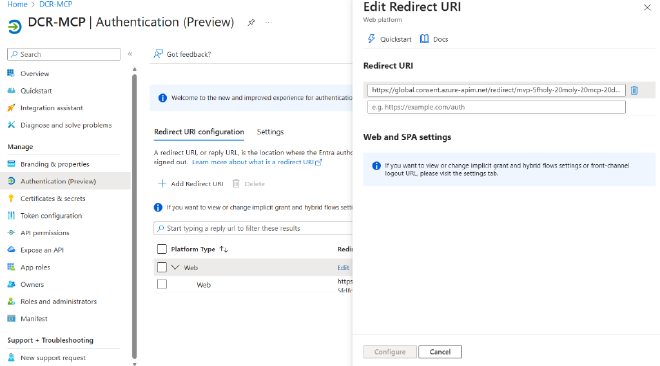
When you connect an MCP Server to Copilot Studio, the platform generates a unique Redirect URI via Azure API Management (APIM). It looks something like this:
https://global.consent.azure-apim.net/redirect/mvp-5fholy-20moly-20mcp-20dcr-5fdfde809e1caf448f
Breakdown of the URI:
mvp-5f: The Publisher of the solution (URL encoded).holy-20moly...: The name of your custom connector.5fdfde...: A unique ID (likely the connector or environment ID).
Because this URI changes based on the environment and connector name, you can’t pre-register it in your Azure App Registration. If you try to log in, Azure AD blocks you with the dreaded Redirect URI Mismatch error.
Manual copy-pasting for every deployment? No thanks. We can do better.
💡 The Solution: Automated DCR#
We implemented an endpoint that intercepts the DCR request from the Power Platform and uses the Microsoft Graph API to update the Azure App Registration on the fly.
1. The Permissions#
The secret sauce is the Application.ReadWrite.All permission in Microsoft Entra ID.
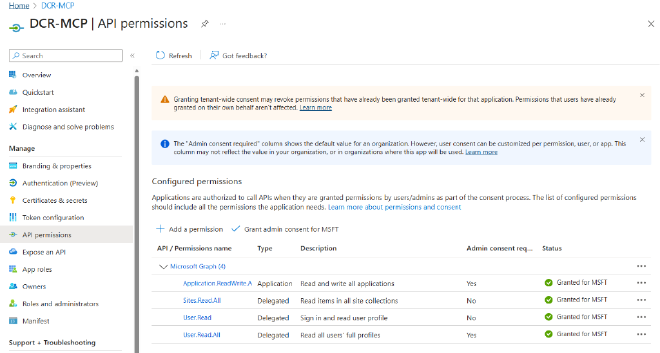
This allows our MCP Server (running as a Service Principal) to say: “Hey Azure, add this new Redirect URI to my list of allowed URLs.”
2. The Implementation#
When Copilot Studio sends a registration request to our /oauth/register endpoint, we don’t just return static credentials. We:
- Authenticate as the App itself (Client Credentials flow).
- Patch the App Registration via Graph API to include the new Redirect URI found in the request.
- Return the Client ID and Secret to Copilot.
The result? The Redirect URI appears in the Azure Portal automatically!
🔧 Technical “Gotchas”#
It wasn’t all smooth sailing. Here are three critical fixes we implemented:
⚠️ Replication Delay (The “Retry” Trick)#
When the MCP Server updates the App Registration, the change in Azure AD takes a few seconds to propagate.
- Symptom: You see a “Redirect URI Mismatch” error on the first try.
- Solution: Just wait 5 seconds and click “Create” (or “Login”) again. It works automatically the second time because the URI is now valid. This is expected behavior with dynamic updates.
AADSTS90009: The Scope Issue#
When the Connector (Client ID X) tries to request a token for the MCP Server (Resource ID X), asking for a scope like api://<guid>/mcp fails if the Client and Resource are the same application.
Fix: Use the format <App-ID-GUID>/.default.
Token Validation: “Required Scope Not Found”#
Once we fixed the scope, the Access Token no longer contained our custom "mcp" scope string.
Fix: Instead of validating the scope string, we switched to validating the Audience (aud) claim. This is actually more secure—it ensures the token was issued specifically for your application.
🎉 The Result#
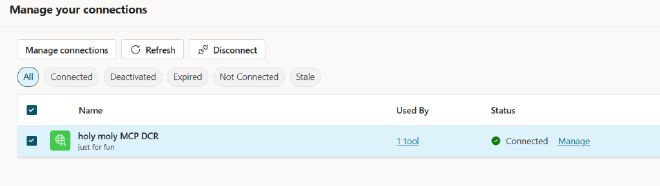
A confusing configuration process is now completely invisible. You just click “Connect” in Copilot Studio, and the green checkmark appears.
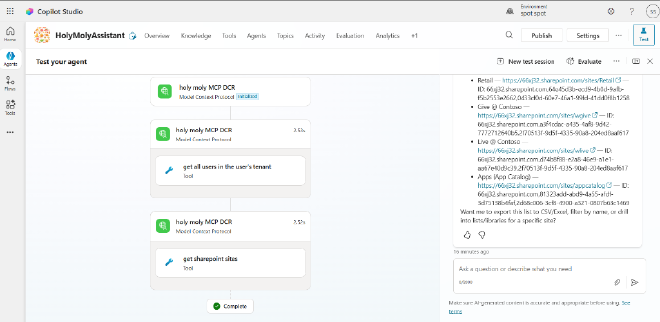
And finally, the Agent in action, discovering SharePoint sites, listing their contents, and fetching items—all powered by MCP tools!
🎁 Happy New Year!#
I hope this helps you build amazing MCPs in 2026.
Happy Coding!